
Microsoft 365 security
Microsoft Secure Score explained
Microsoft Secure Score is a measurement of your security settings. CloudCentric works through recommended actions with you to balance daily protection and usability.
Microsoft 365 security assessment
Points earned from settings and tasks
Microsoft Secure Score provides visibility into your security posture. Points accumulate as you configure features or complete security-related tasks within Microsoft Defender portals.
- 1
Measurement of active settings
Your number reflects system configurations and security features currently active and in use across your environment.
- 2
Points from multiple tasks
Turning on recommended security features, performing security-related tasks, and addressing actions with alternate mitigation tools earn points.
- 3
Ranked list for easy gains
Actions are ranked by points remaining, implementation difficulty, user impact, and complexity so easiest large gains appear first.
Microsoft Secure Score screens
Microsoft presents your security posture inside Microsoft Defender. Viewing screens helps your organization establish key performance indicators and compare with benchmarks.
Select a screen
- 1
- 2
- 3
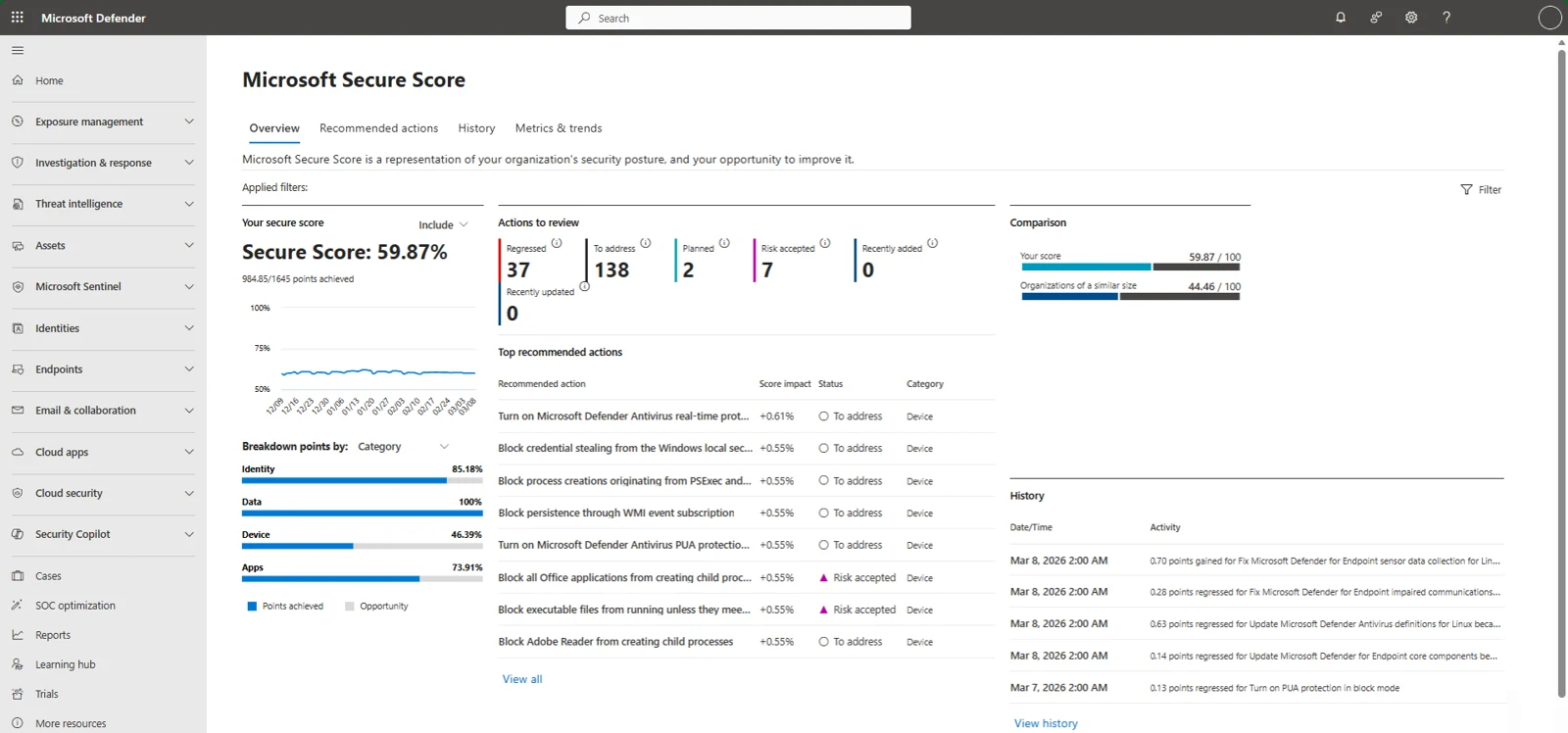
Starting screens for different organization types
Different organization types focus on specific Microsoft Defender screens first based on daily workflows. Owning a license for a supported Microsoft product presents recommendations for that product regardless of license edition or plan.
Screens to open
Points calculated from partial configurations
Some actions calculate points as a percentage of total configurations. Protecting 50 of 100 users with multifactor authentication for a ten-point action earns five points.
Points formula
5 of 10 points
50 protected / 100 total × 10 = 5
Microsoft Entra
- Ensure all users can complete multifactor authentication0 / 9
- Require MFA for administrative roles0 / 10
- Enable policy to block legacy authentication0 / 7
0 of 26 points from security defaults
Turning on security defaults in Microsoft Entra ID earns 26 points across three actions. Microsoft recommends marking user risk and sign-in risk policy actions as resolved through alternate mitigation once these defaults apply.
Microsoft documentation example formula and data.
Statuses applied to recommended actions
Every recommendation in your list carries a status. Updating statuses helps organizations report on current states, discover gaps, and establish key performance indicators.
Select a status
Usage conditions
Points earned
Four groups of recommended actions
Recommendations organize into distinct categories. Overview pages show exactly how points split between your active groups.
Microsoft Entra accounts and roles generate these recommendations.
Microsoft Defender for Endpoint configurations populate device categories. Administrators visit matching Defender Vulnerability Management recommendations to take action.
Email and cloud apps, including Office 365 and Microsoft Defender for Cloud Apps, form app groups.
Microsoft Information Protection configurations trigger data security actions.
Supported products and applications
Recommendations cover tools like Exchange Online, SharePoint Online, Okta, ServiceNow, and Zoom, forming baseline configurations.
Microsoft 365 security best practices
CloudCentric administers Microsoft 365 tenants for local organizations. Working through your recommended actions requires reading ranked lists together, understanding user impacts, and recording honest statuses.
- 1
Open administration dashboards
Administrators access secure score pages inside Microsoft Defender portals.
- 2
Read ranked recommendations
CloudCentric reviews ranked lists and carefully checks user impacts listed beside each action.
- 3
Agree on actions
Together, we decide actions to take and record statuses like risk accepted or resolved through alternate mitigation.
- 4
Apply agreed changes
Our team enacts approved changes and leaves notes directly on each action inside your portal.
- 5
Read history afterward
Teams review history tabs afterward to observe resulting points and score changes following updates.


System configurations and user behavior
Secure Score provides a numerical summary of security posture based on system configurations, user behavior, and related measurements. Microsoft states the score shows the extent to which security controls offsetting breach risks are in use, not how likely a breach is or a guarantee against one.
- 1
Reflects settings and behavior
Points measure active configurations, user behavior, and completed security tasks directly within your Microsoft tenant.
- 2
Balanced with daily usability
Security must be balanced with usability, meaning not every recommendation works for every single environment.
- 3
Numbers move after changes
After actions are completed, 24 to 48 hours can pass before changes show in your total.
Frequent questions
- What is Microsoft Secure Score?
Microsoft Secure Score is a measurement of an organization's security posture found in Microsoft Defender portals. Higher numbers indicate more recommended security actions are taken.
- What is a good score?
Metrics and trends tabs let an organization set custom zones for good, okay, and bad ranges. Overview comparisons show your score against anonymized organizations like yours.
- Who can see our score?
Security Administrators, Exchange Administrators, and SharePoint Administrators have full read and write access. Various reader roles like Security Reader or Helpdesk Administrator hold read-only access.
- Why did our score not change immediately?
System data syncs daily to receive points achieved. After completing actions, 24 to 48 hours can pass before changes reflect in your score.
- What does risk accepted mean?
Risk accepted means an organization chose not to enact actions to balance security with usability. No points are given, but decisions can be viewed in history or undone anytime.
- Does the list cover non-Microsoft products?
Microsoft lists recommendations for non-Microsoft products like Okta, Zoom, Salesforce, ServiceNow, and Docusign alongside its own applications.
- Will CloudCentric work through the list with us?
CloudCentric administrators open secure score pages, read recommended actions with you, discuss user impact, make agreed changes, record statuses, and read your history afterward.
Review your recommended actions
CloudCentric works alongside your team to read lists and configure Microsoft 365 settings appropriately.