
Employee departure steps
Complete employee offboarding checklist for your business
CloudCentric handles accounts, licenses and devices when your staff move on, securing your business data.

Standard departure steps
Securing company data when an employee leaves
Order matters when someone departs. Sign-in is cut off first, ensuring immediate security. Next, their mailbox and files are saved safely. Finally, their license is removed to save you monthly costs.
- 1
Sign-in stops first
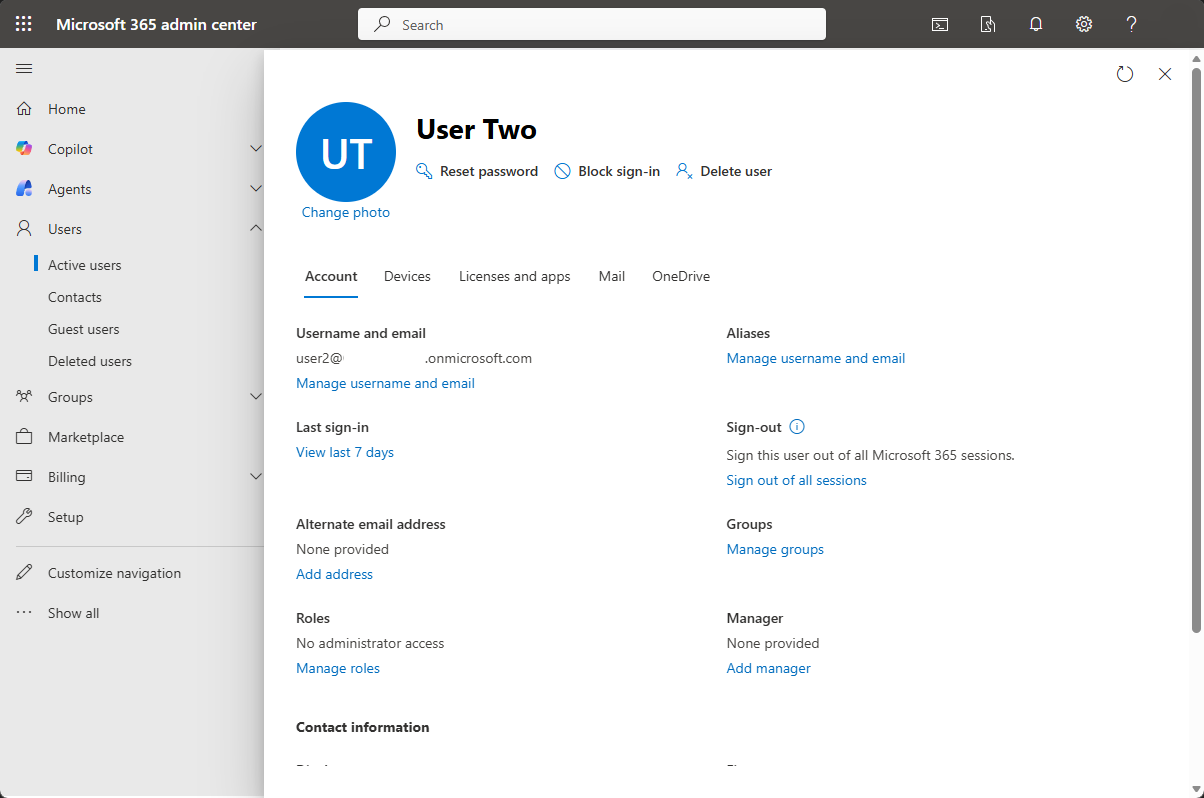
Resetting passwords and blocking sign-in ensures former staff cannot access company systems after they leave.
- 2
Mailbox and files saved
Retaining emails and documents gives your remaining staff the information they need to continue working.
- 3
License goes last
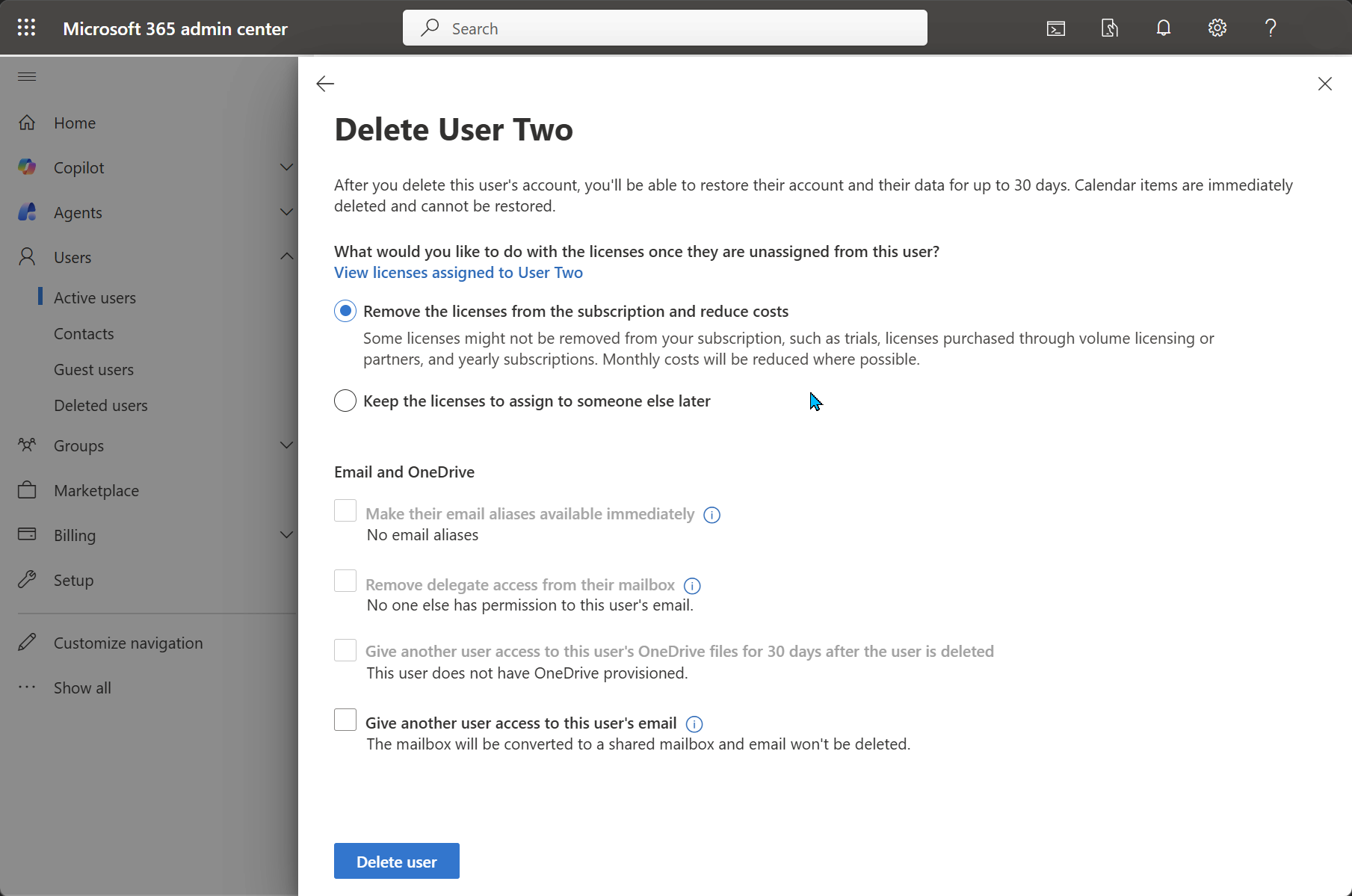
Removed licenses can be reassigned or deleted from the subscription, starting a 30-day clock before data is permanently deleted.
Workplaces we support across the coast
Different businesses require different approaches to offboarding, but saving company information always comes first.
Select your workplace type
Microsoft 365 employee offboarding process
Microsoft outlines seven standard steps to secure data and remove a former employee. Following them in order prevents accidental data loss while shutting down access.
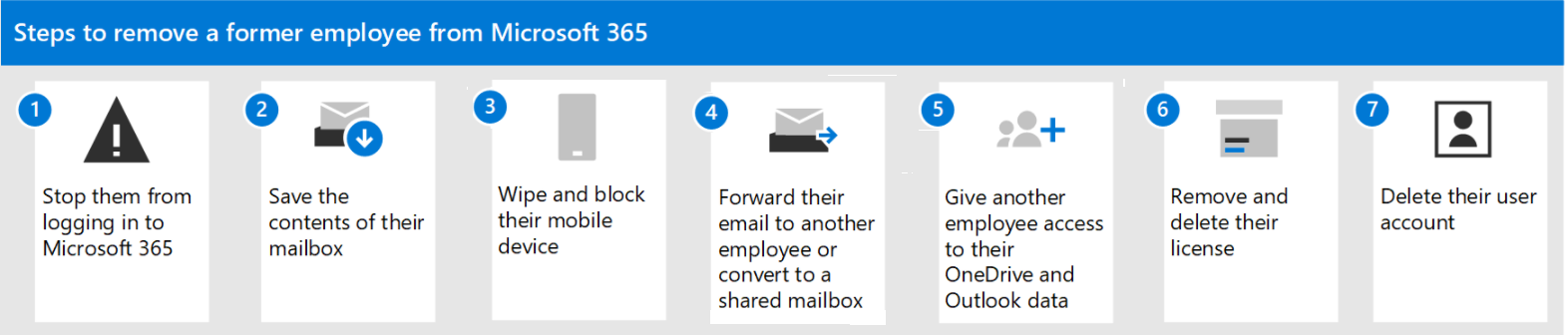
View the seven steps
Understanding 30 days in Microsoft 365
Timers start running when licenses disappear or accounts face deletion. Knowing exactly what happens prevents permanent loss of company records.
Choose an action
CloudCentric backs up a departing employee's mailbox and OneDrive before license removal, because a disabled and unlicensed account can no longer be backed up by any product. Microsoft 365 backup

Securing hardware returned by departing staff
Laptops and phones require attention before you hand them to a new employee. Removing old data protects your company and prepares the hardware for its next user.
- 1
Company phones
Exchange administrators choose either an account-only wipe or a full wipe, then block access to ensure business data leaves the mobile device safely.
- 2
Company laptops
Microsoft Intune Wipe actions factory reset devices, removing organizational data, personal files, apps and configurations entirely to prepare them for new staff.
- 3
Personal computers
Administrators cannot wipe files downloaded to personal computers. Keeping company files strictly in OneDrive and shared locations matters greatly for securing information.
Handling Google Workspace departures
Google handles user departures differently, offering data transfer options and archive licenses to protect files. Securing your information requires specific steps inside the admin console.
Suspend first
Suspending an account temporarily blocks the user from accessing Google services, stopping them from creating or moving content during a data transfer.
Transfer the files
Deleting a user allows transferring Drive files and calendar data to another active account. Deletion stops safely if the transfer cannot complete.
20 days to restore
Restoring a deleted user works for up to 20 days, returning Gmail content and untransferred Drive files. Files in shared drives are never deleted.
Archive instead of delete
Assigning an Archived User license keeps departing user data safe while saving the cost of a full license. Deleting removes the data.
Users on litigation hold cannot be deleted until an administrator with Vault privileges lifts the hold, and lifting it can take up to 48 hours.
Google Workspace Help, delete or remove a userTransfer Drive filesGoogle Workspace backup
Let CloudCentric handle your employee departures
Sending us a single request handles accounts, licenses and devices in one go. Managing departures correctly keeps your company secure and organized.
- 1
Send the leaving date
Tell us when your employee finishes work, giving us the exact schedule for cutting off access.
- 2
Back up the mailbox and OneDrive
CloudCentric backs up the mailbox and OneDrive before license removal, keeping company records safe.
- 3
Work through the seven steps
Processing the standard Microsoft offboarding sequence prevents sign-in, wipes hardware and secures your tenant.
- 4
Hand over the mailbox and files
Giving access to the remaining team members ensures projects continue without missing important communications.
Common questions about employee departures
- What should happen first when an employee leaves?
Resetting the password stops access immediately. Blocking sign-in can take up to 24 hours to take effect, making a password reset the most reliable way to secure company accounts right away.
- Does removing a license delete the mailbox?
Removing a Microsoft 365 license holds user data for 30 days. Email, contacts and calendars are then deleted permanently.
- Can a deleted user be restored?
Restoring a deleted user works within 30 days in Microsoft 365, bringing back the account and mailbox fully. A license must be available to assign to the restored account.
- Can email to the old address keep arriving?
Converting a former employee's mailbox to a shared mailbox keeps existing email and receives new messages. Several people can open a shared mailbox, and it needs no license under 50 GB.
- Does Google Workspace work the same way?
Administrators transferring Drive files to a new owner in Google Workspace should suspend the account first. Deleted users have a shorter window, offering up to 20 days for restoration.
- What about the leaver's phone?
Exchange administrators can issue an account-only remote wipe or a full remote wipe to mobile devices, then block access. Doing so removes business data so the phone can no longer connect.
Secure your company data today
Call CloudCentric to manage your employee departures safely and correctly.