Technical discovery help
Microsoft 365 litigation hold and export steps
CloudCentric provides plain technical assistance for preserving and producing an organization's own email and files.

Technical assistance only
Helping organizations export internal records
CloudCentric gives technical help exporting an organization's own email and files and explaining what a Microsoft 365 or Google account holds. Your organization and its lawyer decide what is produced.
- 1
Create a hold
Placing an eDiscovery hold preserves the content of the people named for a legal matter. CloudCentric helps your administrator apply a hold to specific mailboxes and accounts.
- 2
Search for items
Finding requested items requires exact parameters. CloudCentric helps your administrator run searches using locations, dates and keywords your legal counsel provides.
- 3
Export the results
Moving records out of Microsoft 365 produces files your legal team can review. CloudCentric helps your administrator export requested data so your organization can produce it.
Helping local businesses and legal teams
Producing email and files requires technical steps inside an administrative panel. We handle administrative tasks so your team can focus on normal operations and legal work.
Select your specific role
Microsoft 365 litigation hold and preservation types
Microsoft offers different ways to preserve data. Litigation Hold is an older feature that Microsoft says is still supported while recommending retention or eDiscovery holds.
Compare available hold types
| Retention | eDiscovery hold | |
|---|---|---|
| Business need | Compliance | Legal |
| Time scope | Long-term | Short-term |
| Focus | Broad, content-based | Specific, user-based |
| Start and end dates configurable | Yes | No |
| Content deleted automatically | Yes, optional | No |
| Administrative overhead | Low | High |
Microsoft Learn, retention policies and labels, updated July 22, 2026. Microsoft Learn.
Purview eDiscovery licensing and hold requirements
Microsoft controls access to eDiscovery tools by license tier. We confirm your plan's tier directly in your organization's own tenant before starting work. Licenses were checked November 7, 2026.
eDiscovery (Standard)
Administrators can create cases, attach searches and exports to cases, and place an eDiscovery hold on content locations.
Microsoft lists eDiscovery for sites and files and for email under Microsoft 365 E3 and E5 and Office 365 E3 and E5 columns.
eDiscovery (Premium)
Administrators get an end-to-end workflow with custodian management and legal hold notifications to custodians.
Microsoft lists eDiscovery Premium under E5 plans and E5 and Purview add-ons, and not under E3. Both the user and administrator must have the appropriate license.
Shared mailboxes on hold
Administrators can place a shared mailbox on hold in Exchange or through Purview eDiscovery.
Microsoft requires Exchange Online Plan 2, or Plan 1 with the Exchange Online Archiving add-on.
Litigation Hold in Exchange Online
Administrators can apply a Litigation Hold to a user mailbox.
Microsoft lists Litigation Hold for Exchange Online Plan 2 and Microsoft 365 Business Premium, and not for Plan 1, Business Basic or Business Standard.
Sources: Microsoft Purview service description (updated November 6, 2026), Get started with eDiscovery and Create holds in eDiscovery. Checked November 7, 2026.
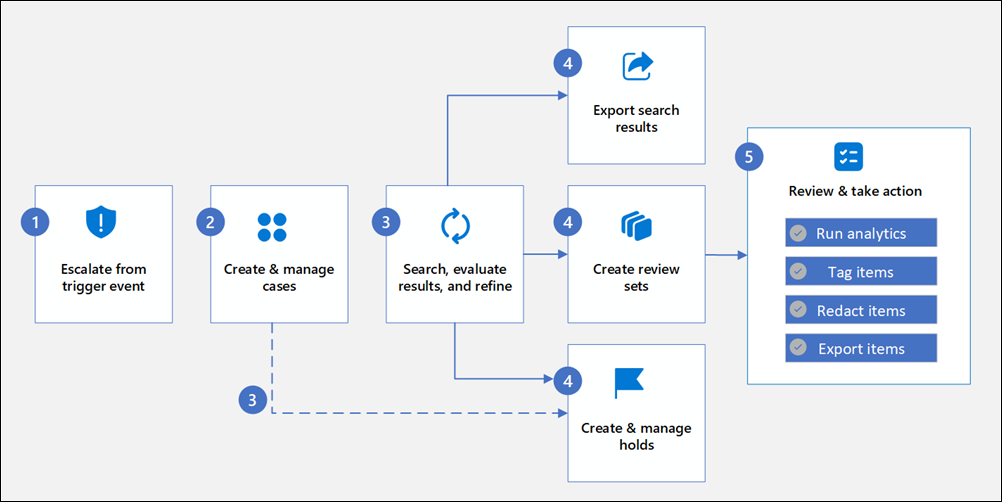
Searching and exporting records from Microsoft 365
Exporting records requires moving through specific phases inside your administrative panel. Administrators can create a hold at any time without depending on a search.
- 1
Create a case
Administrators set up a new workspace in Purview to contain specific holds, searches and exports for a single matter.
- 2
Place holds
Mailboxes and OneDrive accounts of the people named are preserved. Microsoft notes an eDiscovery hold can take up to 24 hours to take effect.
- 3
Search and refine
Administrators search for requested items and review results on Statistics or Sample tabs to ensure correct content is captured.
- 4
Export and download reports
Summary information downloads as a .csv file. Exporting lets the administrator choose included items, item types and final export formats.
Preserving data for departing employees
Removing a license starts a 30-day grace period for Exchange Online data, and deleting an account starts OneDrive cleanup. Placing a hold first keeps a mailbox as an inactive mailbox.
Mailbox thirty day grace period
Removing a license holds Exchange Online data for 30 days. After 30 days, the email is deleted and cannot be recovered, and the user is no longer searchable.
OneDrive deletion clock
Deleting an account starts OneDrive cleanup. Default retention is 30 days, then the OneDrive sits in the site collection recycle bin for 93 days.
Inactive mailbox route
Placing a hold on a properly licensed mailbox before deleting the user account creates an inactive mailbox. Authorized people can then search and export the inactive mailbox.
Day 0 is license removal
Microsoft Learn: Assign or unassign licenses; OneDrive retention and deletion. Checked November 7, 2026.
- 1
Place a hold
Apply an eDiscovery or litigation hold while the account remains fully active and licensed correctly.
- 2
Wait for application
Confirm your hold is active. Microsoft notes an eDiscovery hold can take up to 24 hours to take full effect.
- 3
Remove the account
Proceed with offboarding only after confirming holds are active. CloudCentric backs up a departing employee's mailbox and OneDrive before the license is removed.
Google Vault holds and exports
Organizations running Google Workspace use Vault to preserve records. Vault provides similar technical mechanisms for holding accounts and exporting data for review.
Place targeted holds
Administrators can place holds on individual accounts, organizational units and specific groups to prevent data deletion.
Search and preview
Finding records works by querying an account, organizational unit, date range or keyword. Administrators can preview results directly in the panel.
Export the data
Exporting includes a copy of matching data, linking metadata and verification information. Each export is available for 15 days before deletion.
Archive departing users
Deleting a user deletes Workspace data, including Vault data. Assigning an Archived User license or suspending the account preserves data instead.
Editions Google lists
Google lists Frontline Standard and Plus, Business Plus, Enterprise Standard and Plus, Education editions, Enterprise Essentials and Essentials Plus, and G Suite Business; the list does not include Business Starter or Business Standard.
Getting technical discovery assistance
CloudCentric assists your organization's administrator with technical tasks. Your legal team remains in full control of search parameters and final output.
- 1
Talk with the lawyer
We walk the lawyer through what Microsoft 365 or Google locations hold so requests target correct data.
- 2
Check licenses and holds
We review current subscriptions in your tenant to verify you have correct tools available to apply a hold.
- 3
Run the export
CloudCentric helps your organization's own administrator run the exact searches and exports your legal team specifies.
- 4
Download exported files
CloudCentric helps administrators download the exported files. Your organization and its lawyer decide what is produced.
Common preservation questions
- What is the difference between a litigation hold and retention?
Retention is for long-term compliance with configurable dates and optional automatic deletion. An eDiscovery hold is a short-term, user-based tool for a legal need, with high administrative overhead and no configurable dates.
- Does Business Premium include eDiscovery?
Microsoft's eDiscovery license tables name E3 and E5 plans and do not name Business Premium, but Business Premium does include Litigation Hold in Exchange Online. CloudCentric confirms what a tenant supports before work starts.
- What happens to a mailbox when we remove a license?
Exchange Online holds data for a 30-day grace period. After 30 days, email is deleted and cannot be recovered, and users are no longer searchable with eDiscovery tools.
- Can a shared mailbox be held?
Yes, placing a shared mailbox on hold requires an Exchange Online Plan 2 license, or Plan 1 with the Exchange Online Archiving add-on.
- Does Google Business Standard include Vault?
Google's Vault overview does not list Business Starter or Business Standard and points to Google Sales for other editions.
- How long does a hold take to apply?
Microsoft notes an eDiscovery hold can take up to 24 hours to take full effect across designated mailboxes, OneDrive accounts and specific sites.
Ready for technical assistance
Call CloudCentric at (844) 422-7000 for help managing your organization's record exports from Charleston to Savannah.