Evidence for kiosk features
Evidence for the kiosk comes from a vendor demonstration and one integrator case study. End-user reports were not found.
CloudCentric managed IT
Guests check in on an iPad, hosts approve them from a phone, and temporary access badges print at the front desk.
Administrators assign exact doors and hours for every guest, contractor or cleaner. Visitors cannot open doors outside scheduled times.
Clients and vendors arrive for meetings. Guests scan their invitation code, hosts approve the check-in from a smartphone, and visitors receive a printed badge.
Medical reps, couriers and contractors check in at the front desk with the iPad. Administrators can require host approval before issuing a pass limited to chosen doors and hours.
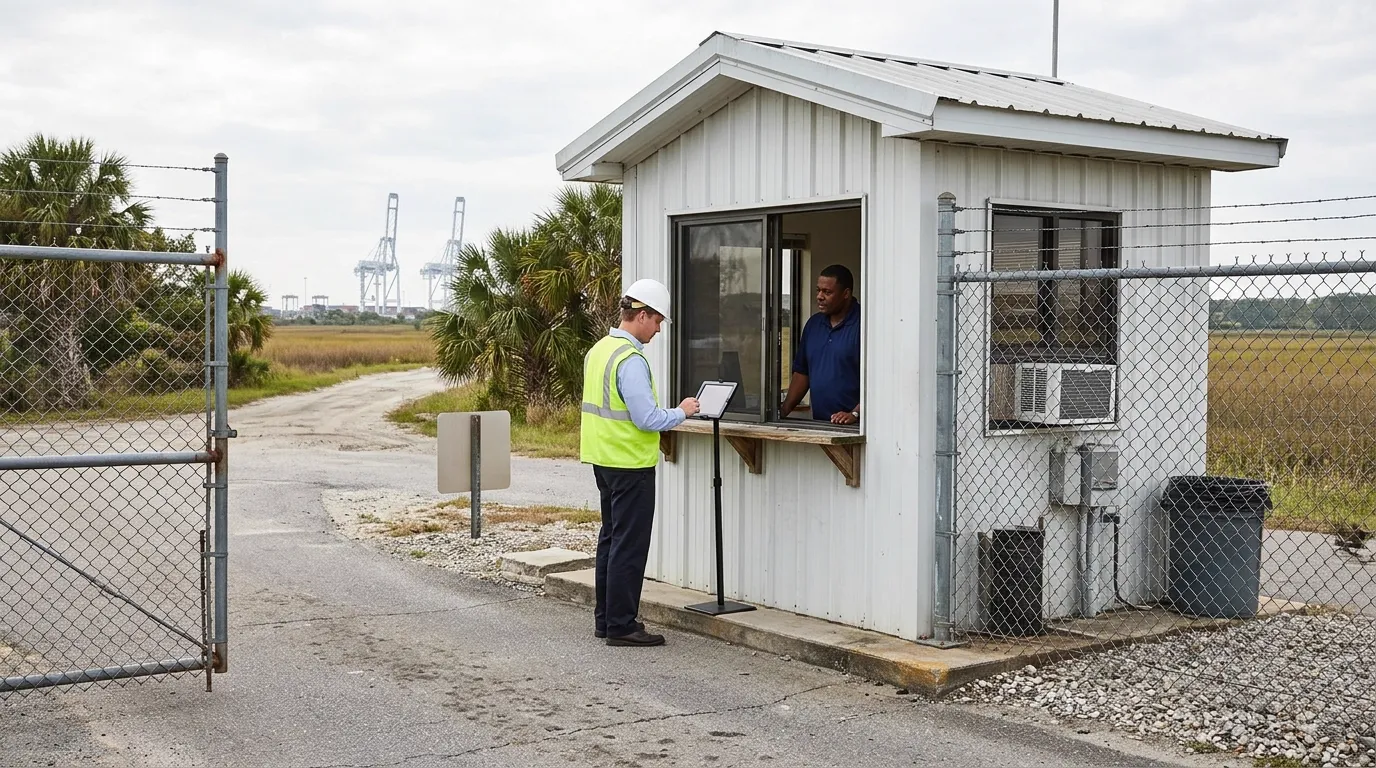
Delivery drivers and maintenance workers sign in at the gate or loading dock. Facility managers track arrival times and limit contractors to specific zones.
Parents and substitute teachers stop at the front office door. Guests scan an invitation at the iPad, take a photo and receive a badge.
Members and day-pass users drop by for work or workouts. Temporary passes replace shared PIN codes and expire automatically when the visit time ends.
Guests walk through a short sequence on an iPad at the front desk. Administrators control every option shown during check-in.
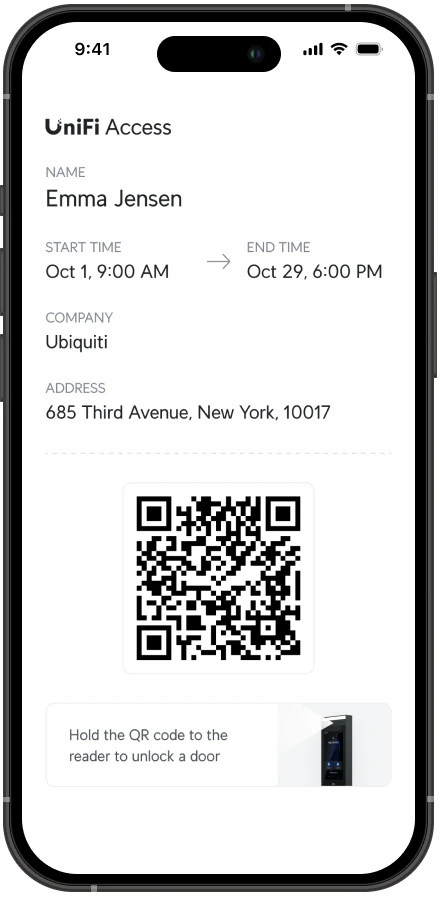
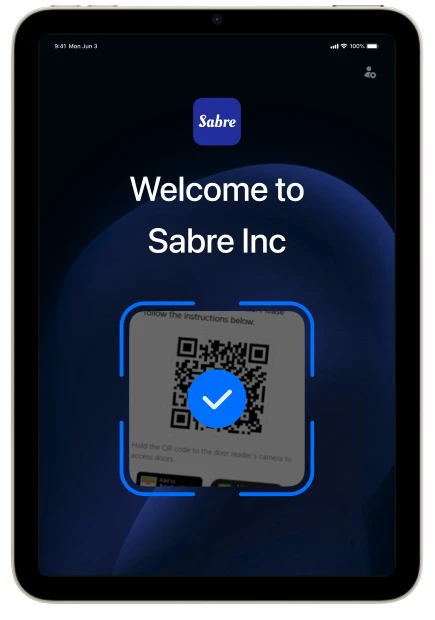
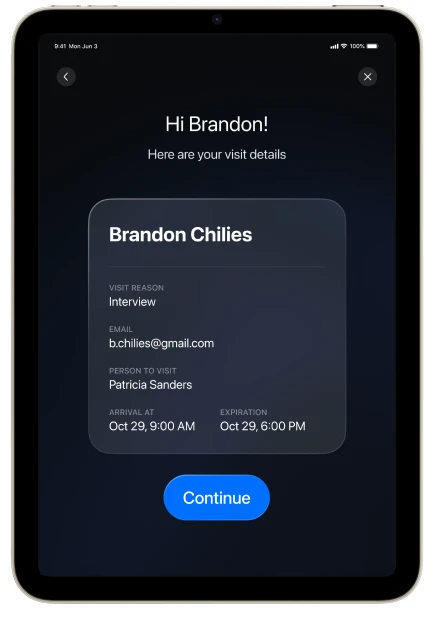

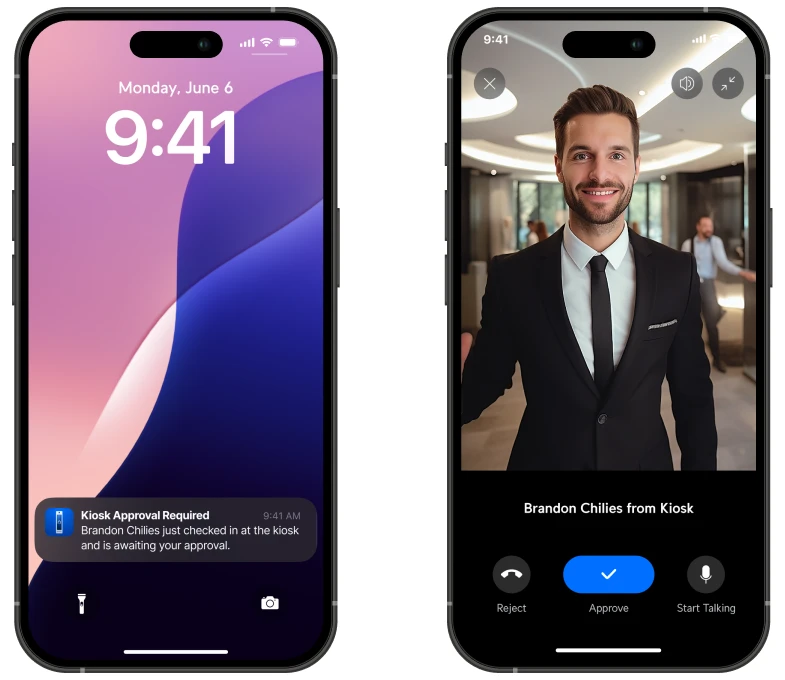
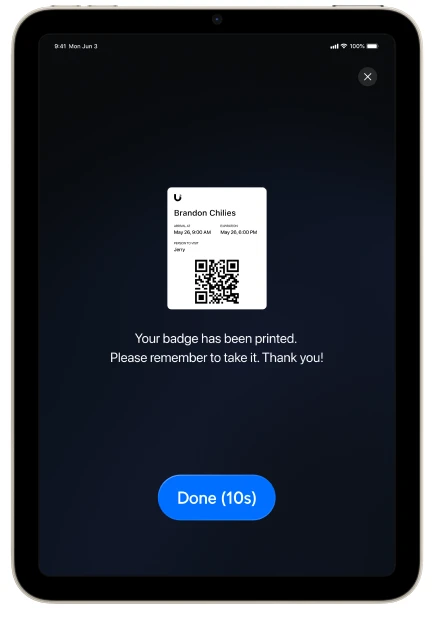
Administrators turn check-in steps on or off. Options include scanning an ID card, taking a face photo and requiring remote approval before entry.
Sample shows options administrators can choose.
Credentials expire automatically when the visit time ends. Visitors cannot check in at the kiosk or open doors outside scheduled visits. Cancel a visit to revoke credentials immediately.
Visitors and hours shown are an example.
Badges serve as working door credentials in the same system as staff access. Visitors scan the QR code on the badge at a door reader to enter scheduled areas.
Brother QL-820NWB and QL-820NWBc printers join Wi-Fi or Ethernet on the same network segment as the iPad kiosk to print visitor badges.
Administrators view arrival times and manage guests in the web application. Staff can invite guests from mobile apps when administrators allow visitor invites.
Evidence for the kiosk comes from a vendor demonstration and one integrator case study. End-user reports were not found.
Kiosk operation requires an iPad and a badge printer on the same network segment.
Hosts see the visitor on one-way video and can speak to them, but visitors cannot see the host.
CloudCentric confirms any software costs for the kiosk before quoting.
CloudCentric installs and sets up the iPad and the printer.


CloudCentric maps doors, network cables and the front desk.
Technicians mount door readers, hubs, iPads and printers.
Engineers connect devices to the network and set up doors.
CloudCentric finalizes the setup and supports the doors, iPad and printer afterwards.
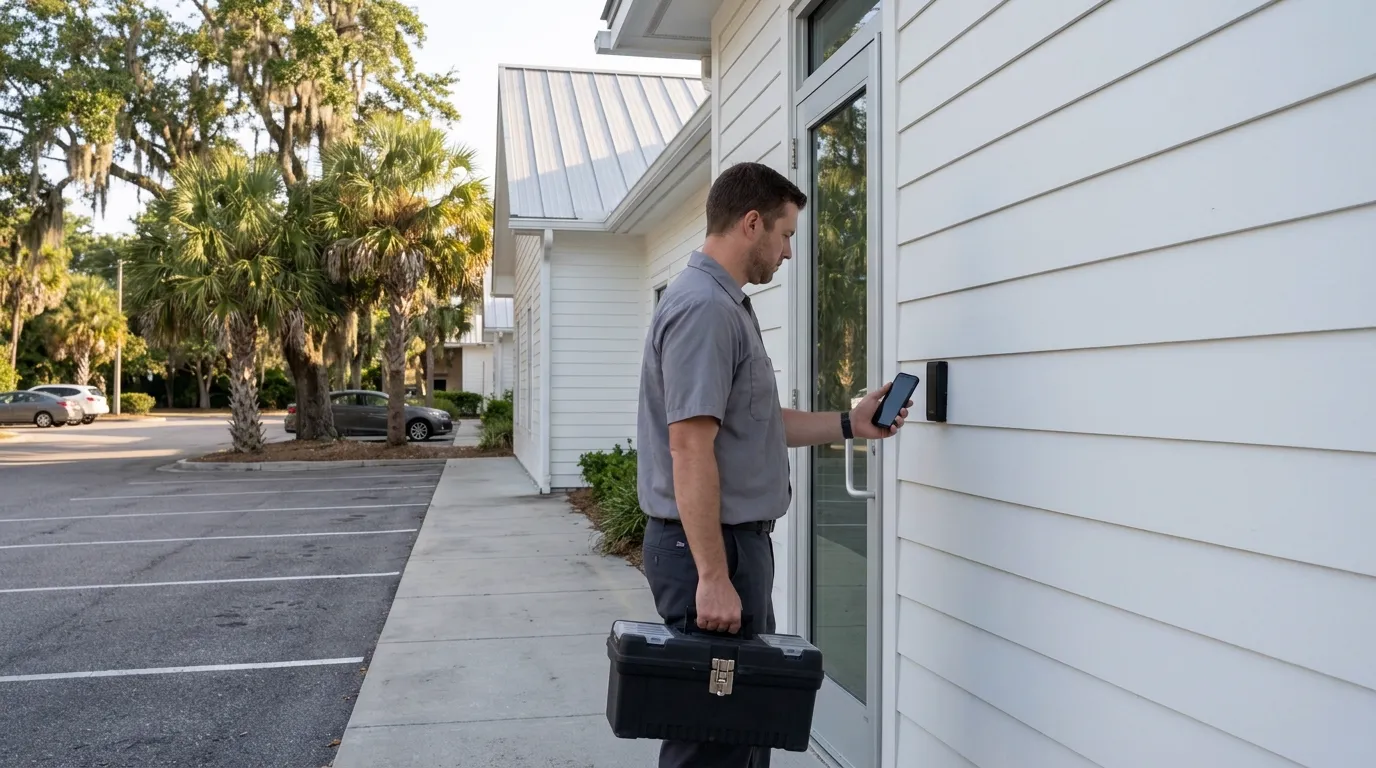
No, guests use a QR code from an email or text message to check in at the kiosk and open scheduled doors.
Yes, staff can create schedules and share a QR code from a mobile app if an administrator allows visitor invites.
Visitors cannot check in at the kiosk or open doors outside the scheduled visit time.
ID scans and face photos are stored on the console and remain visible only to administrators and console owners.
Yes, a recurring visit schedule gives a cleaner, vendor or caregiver the exact same access hours every week.
Call CloudCentric to review doors and network needs.